Change the View of a 3D Model
Use the six View presets to inspect an STL model from a precise side.
Open a model, then use the View menu when you need a straight top, bottom or side view. The colored axes help identify the direction you are looking from; these controls change the camera, not the model's geometry.
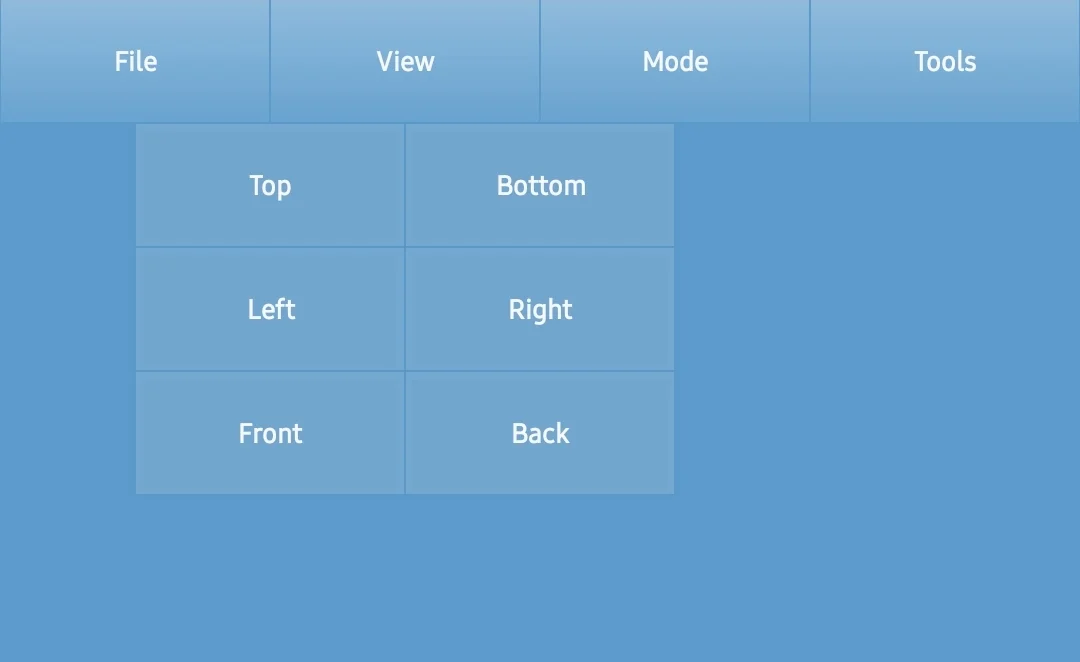
Open the View menu
Choose Top, Bottom, Left, Right, Front or Back to turn the camera to that side.
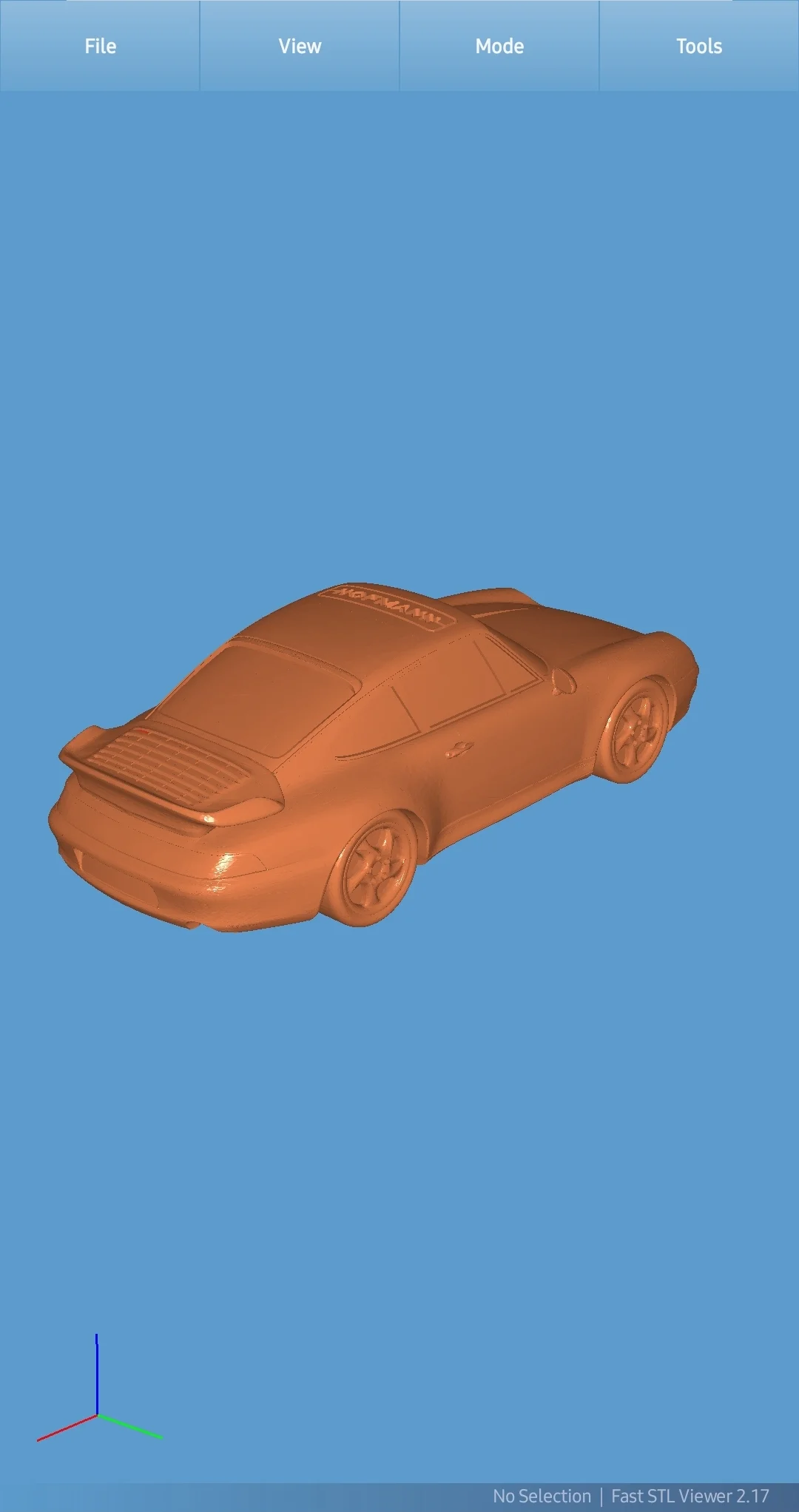
Coordinate axes
At the bottom of the scene: X-axis is red, Y-axis is green, Z-axis is blue
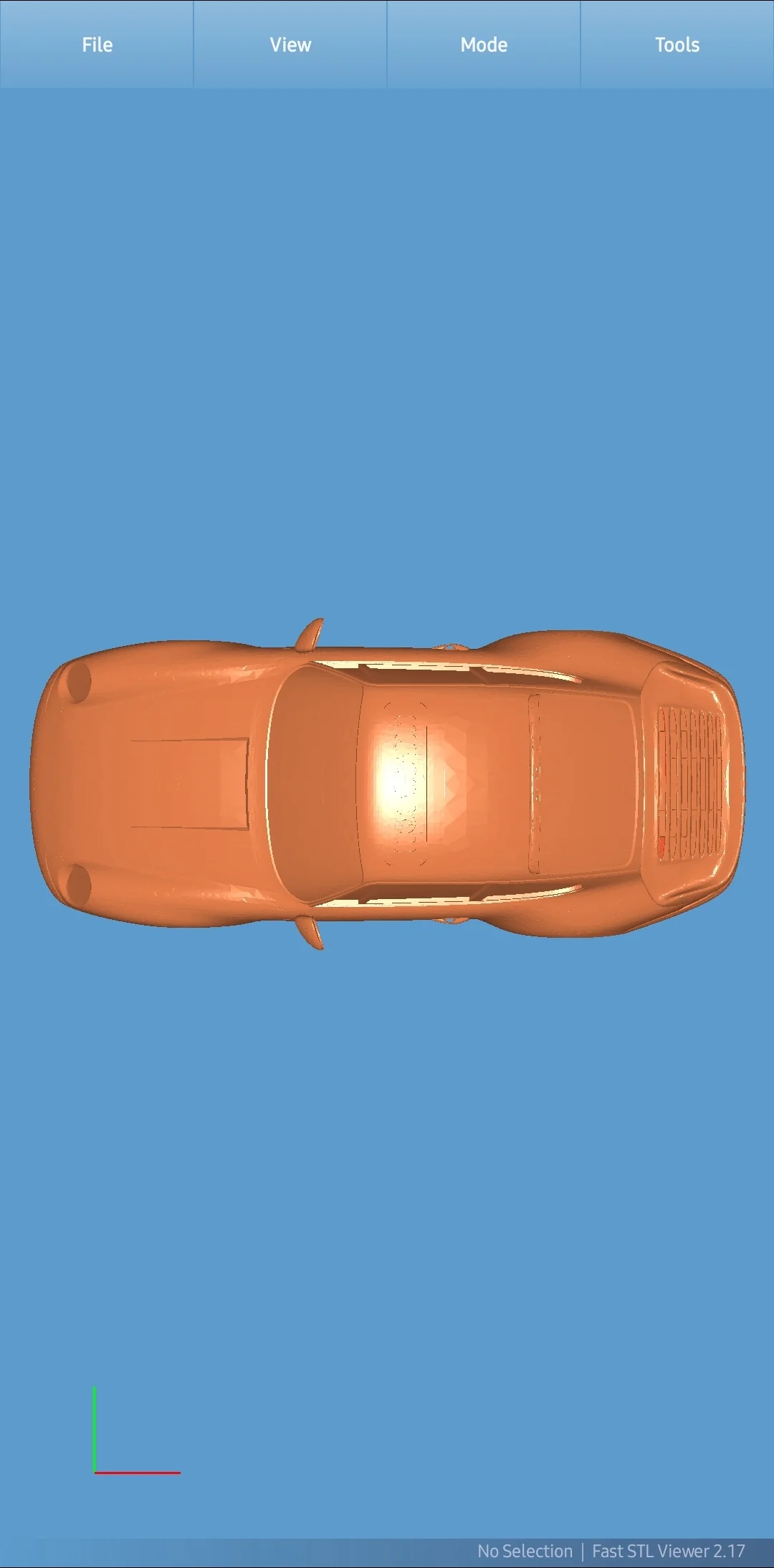
Top view
XY-plane, Z-axis points to the viewer
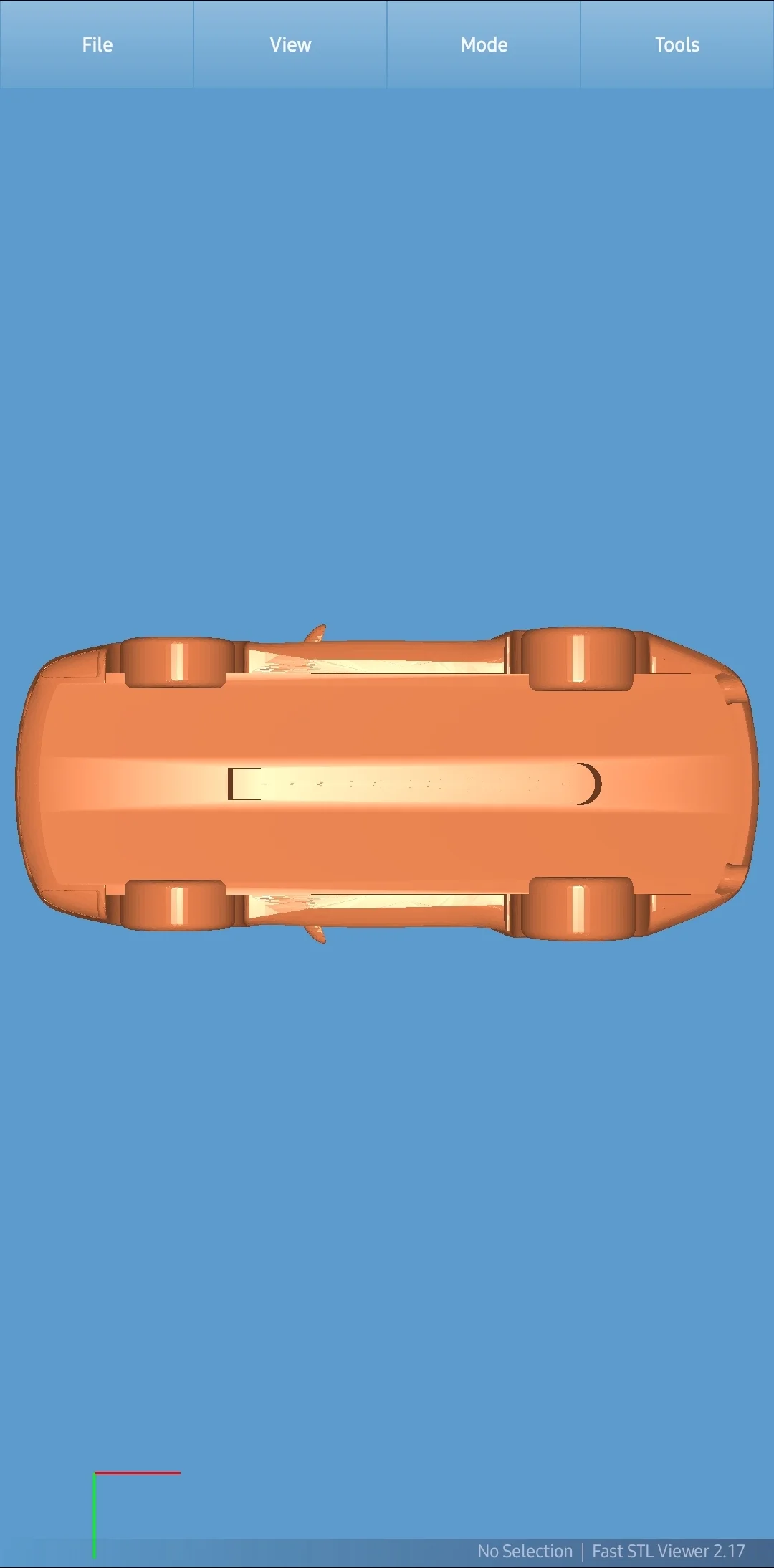
Bottom view
XY-plane, Z-axis points from the viewer
Left view
ZY-plane, X-axis points from the viewer
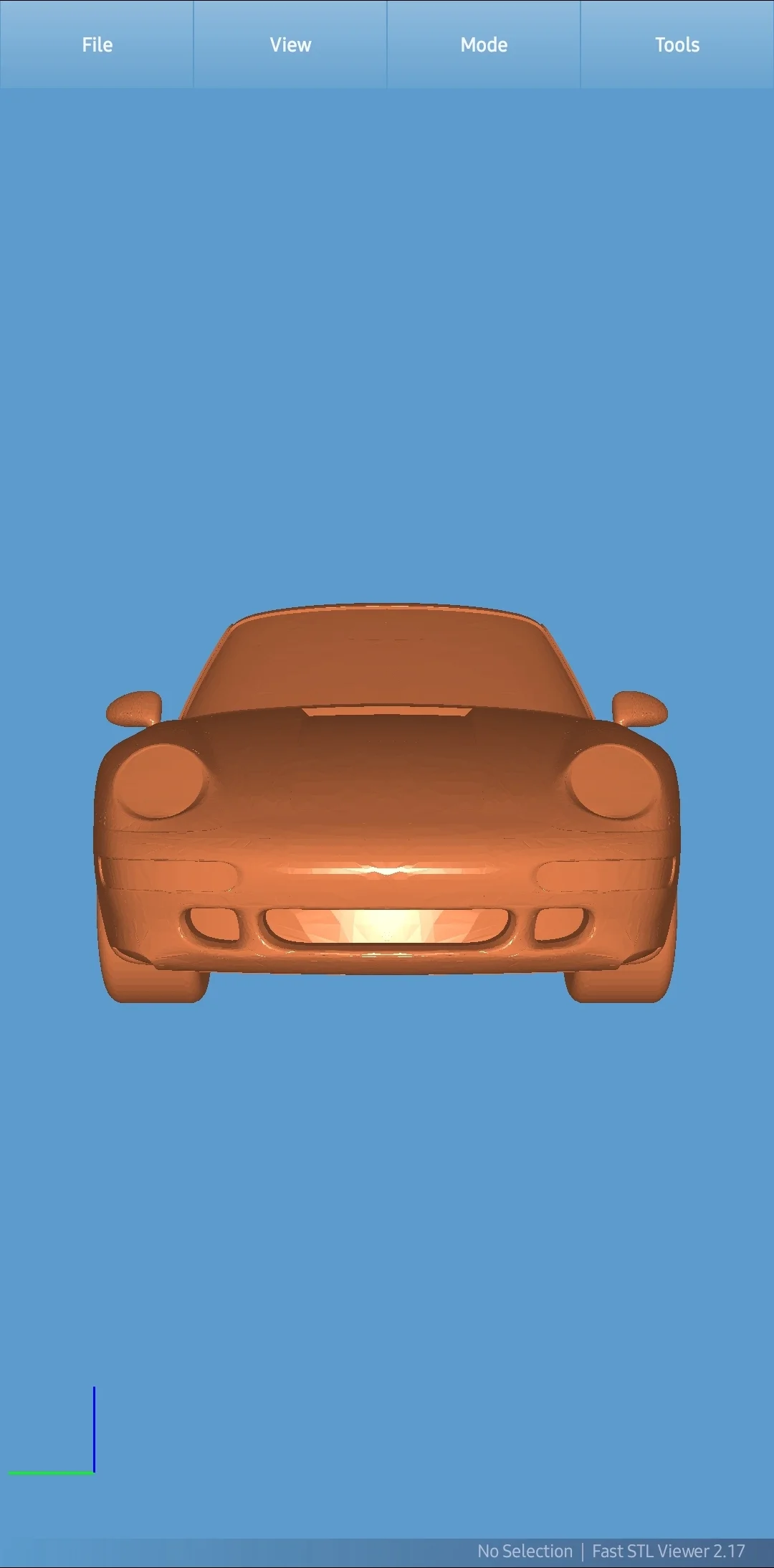
Right view
ZY-plane, X-axis points to the viewer
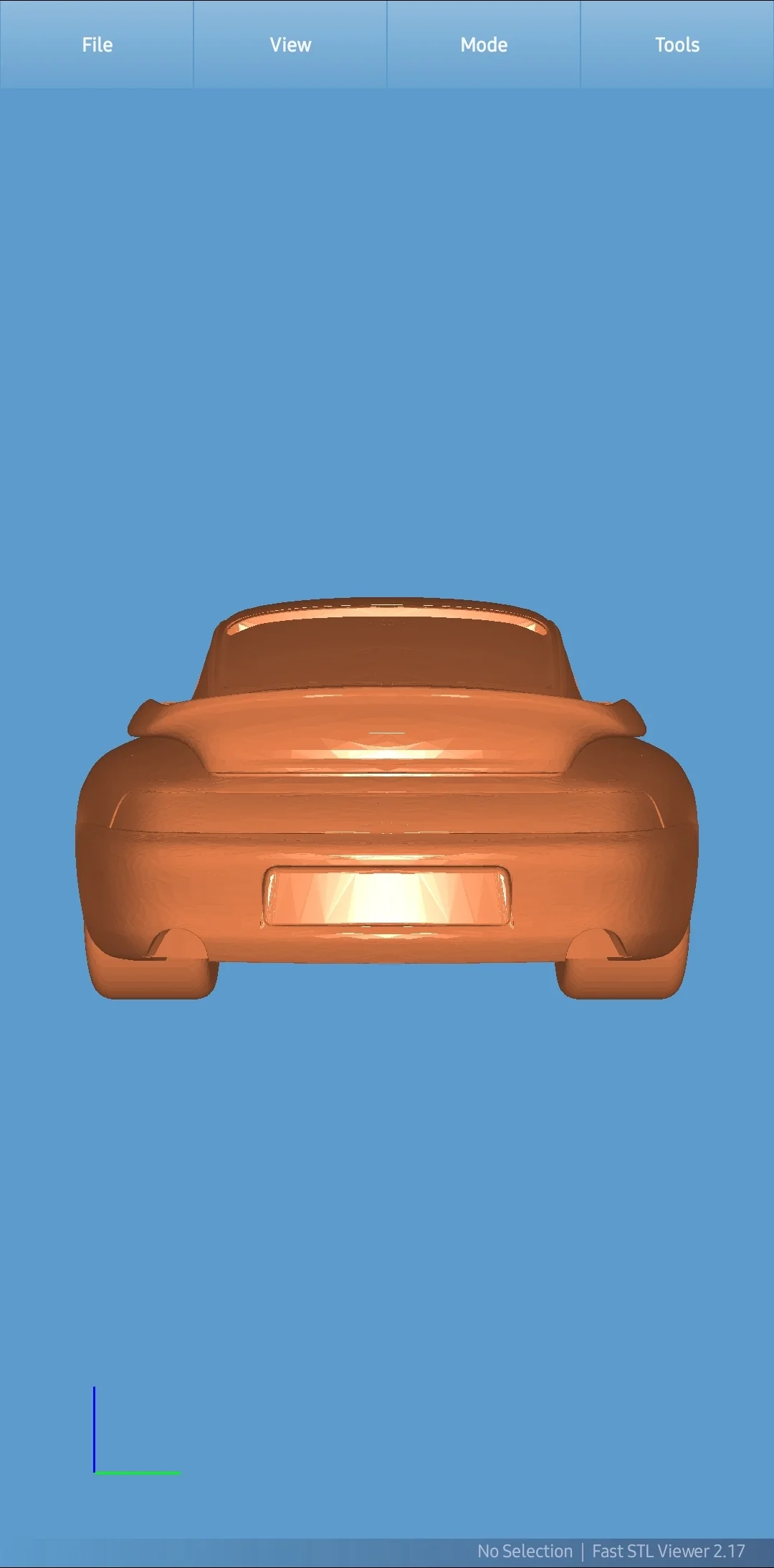
Front view
ZX-plane, Y-axis points from the viewer
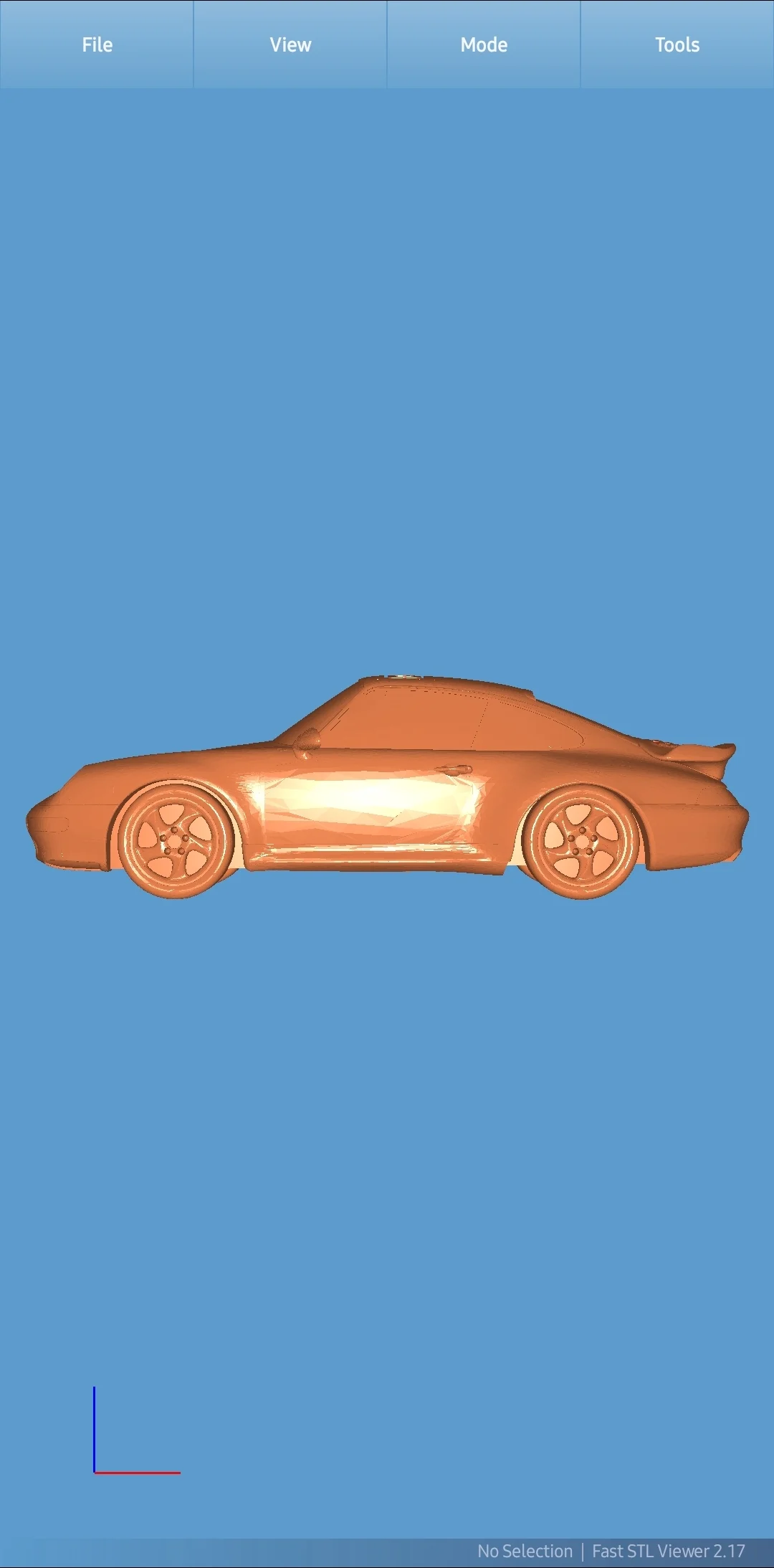
Back view
ZX-plane, Y-axis points to the viewer
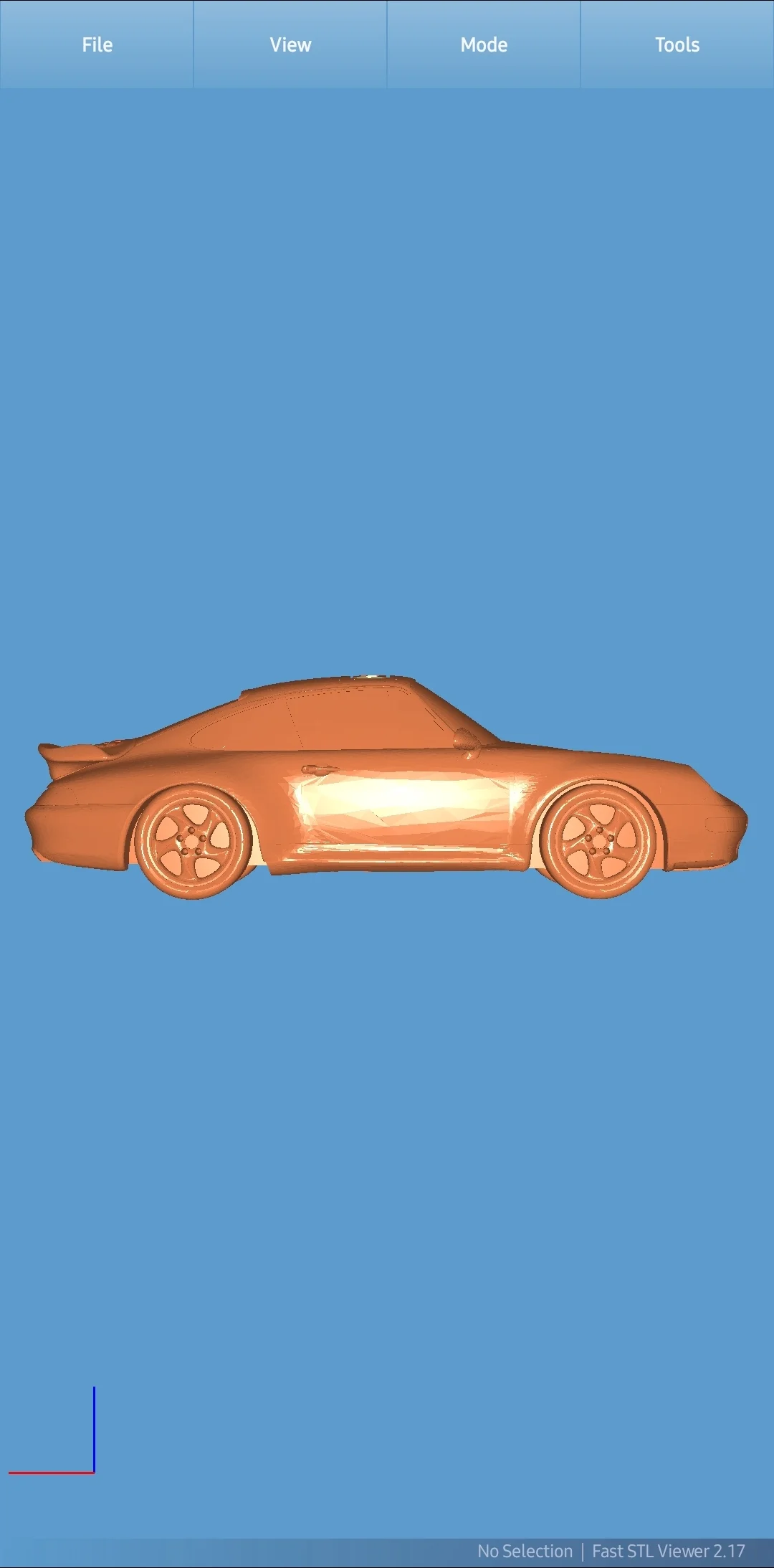
If a side is hard to see, choose its opposite preset or drag on the scene to orbit freely. The corner axis control also turns the view to a side. To change how surfaces and edges are drawn, see display modes. Need a model first? Open an STL file.