Open an STL File in Fast STL Viewer
Find a model on your Android device using the app's File → Open menu.
Use this route when you know where the STL file is stored on your phone. After it loads, the model appears in the 3D scene, where you can turn it and inspect it from different sides.
1
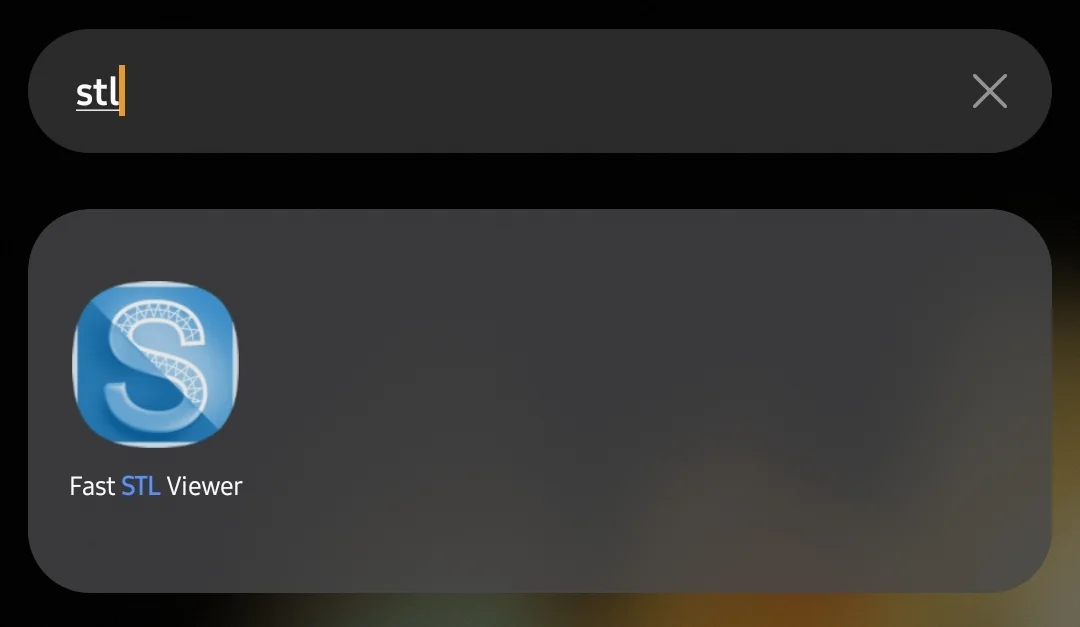
Launch the app
2
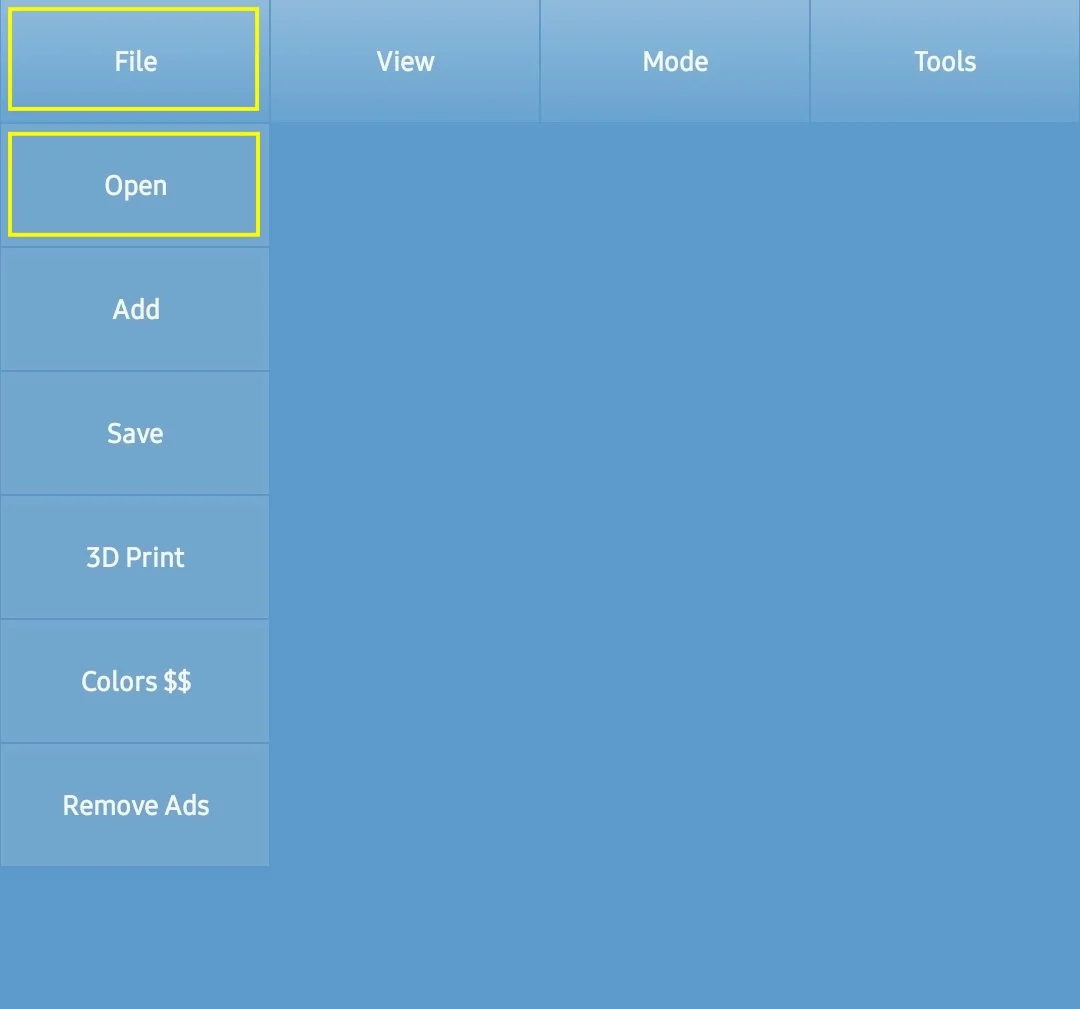
Go to File → Open
Tap File in the toolbar, then Open. If Android asks for file access, follow the on-screen prompt.
3
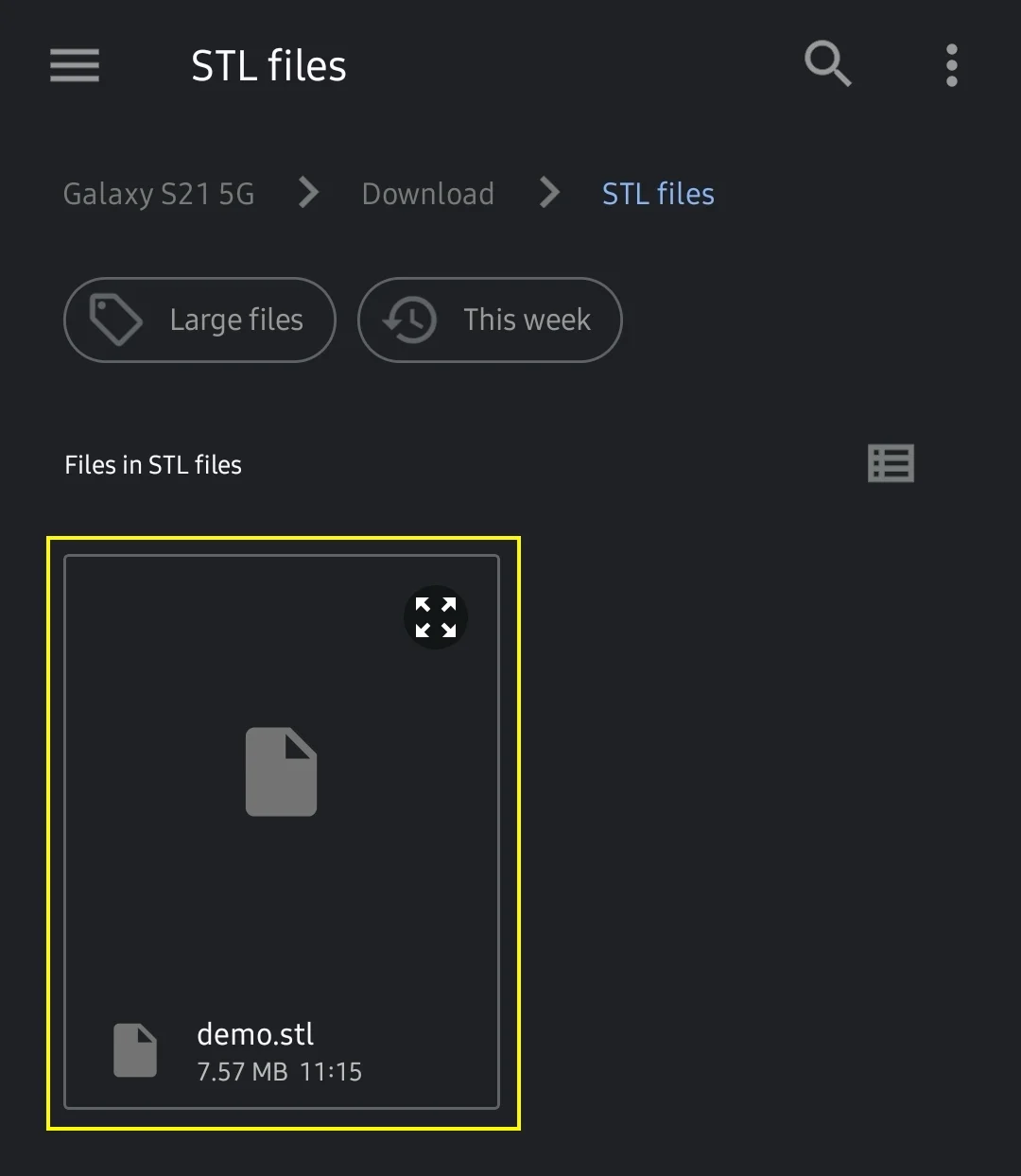
Browse and select an STL file
Browse to the folder containing your model and tap its STL file.
4
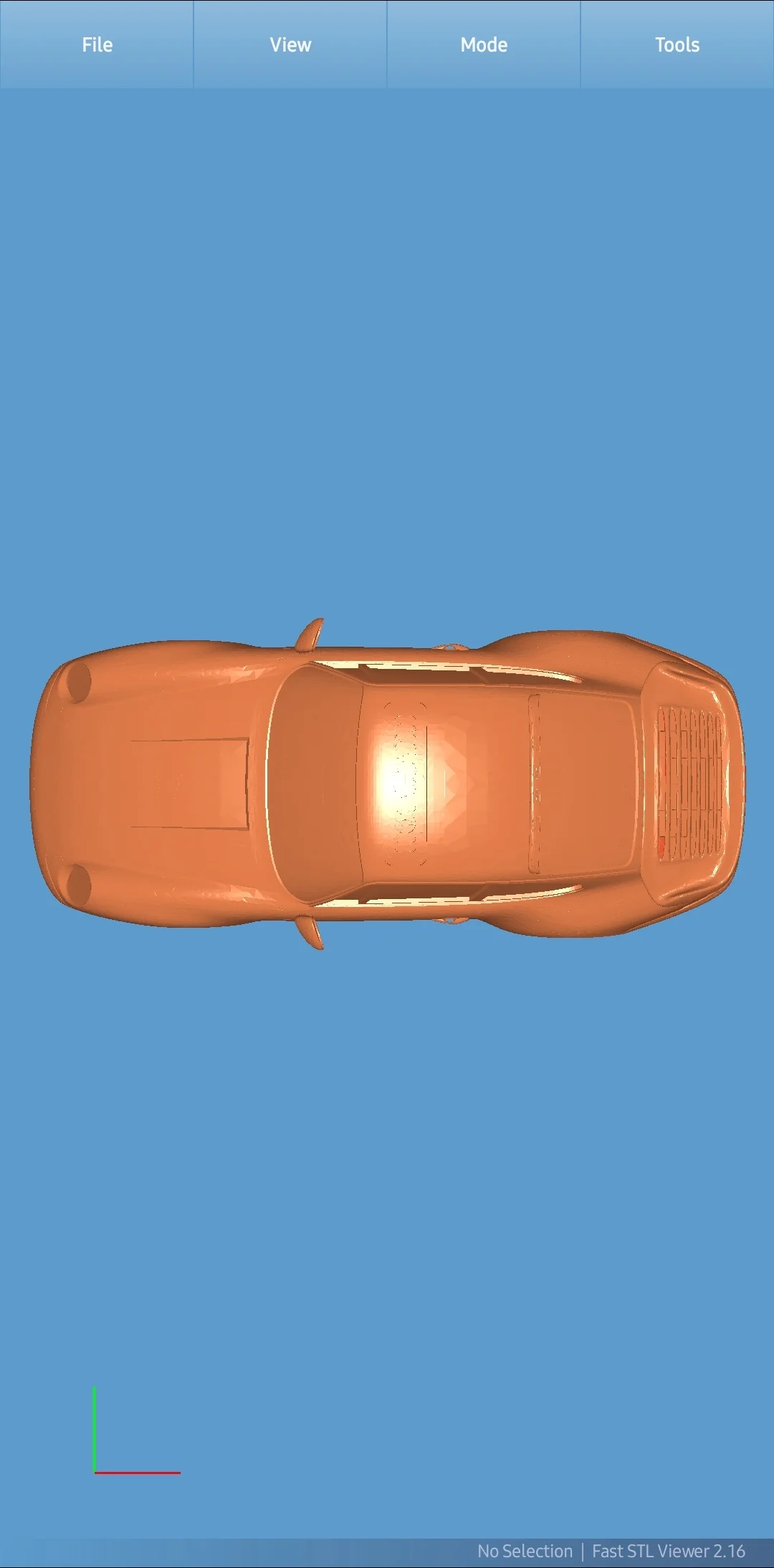
View the loaded model
The selected file is loaded on the 3D scene
If you cannot find the file in the app, locate it in your phone's file manager and use its Open with option instead. See open an STL from another app. Once loaded, use view orientations to inspect each side.